

To manage your web hosting or domain name services provided by Gaviso, you can log in quickly and securely at any time. Follow the steps below:
Step-by-Step Access Instructions
Go to the Control Panel:
Visit https://cp.kinetic.cloudEnter Your Login Details:
Use your username and password to sign in.Forgot Your Password?
Click “Forgot your password?” on the login page.
Then, enter your email address to receive a password reset link.Alternative Access via Billing Account:
You can also log in to your hosting panel directly from your Gaviso billing portal. This gives you access to hosting, domain renewals, and service management all in one place.
How to add someone to your account
If you need to give a team member, collaborator, or developer access to your hosting account, follow the steps below to securely invite them.
Steps to Add a User
Log In to Your Account:
Go to https://cp.kinetic.cloud and sign in.Open the User Management Panel:
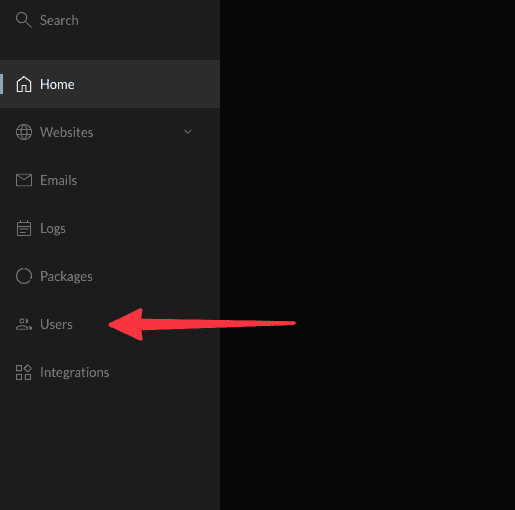
From the left sidebar, click on the “User” tab.
Click “Invite User”:
This button is located at the top-right corner of the page.

Choose an Invitation Method:
Invite with email – Sends an invite directly to the user’s inbox.
Invite with link – Generates a shareable invite link that you can send manually.
Assign a Role:
Super Admin – Full access to all technical and administrative features.
Collaborator – Limited access, only to websites they are assigned.
Best Practices
Only assign Super Admin access to trusted individuals.
For freelancers or temporary help, use the Collaborator role and limit access to specific sites.