
This article shows how to add a payment method to your accounts. This includes methods for one-time purchases and recurring payments. You also learn how you can remove a payment source.
Adding a payment method
There are two ways to add a payment method.
from the account dashboard
at the checkout
Dashboard method
Log in to the store account at https://account.gaviso.agency
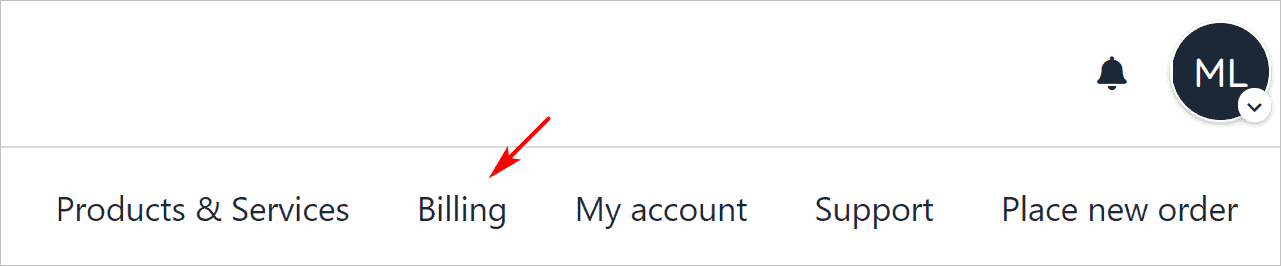
Click the Billing menu tab.
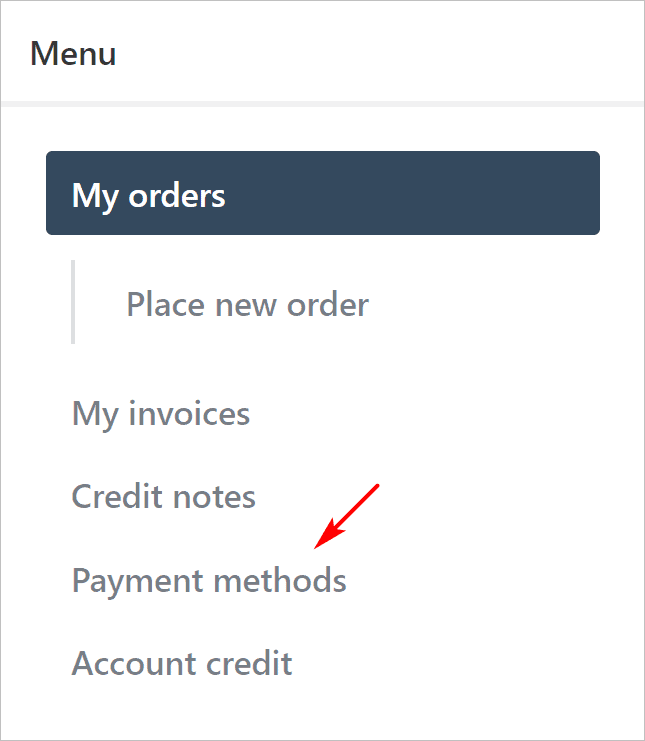
On the left menu, click Payment methods.
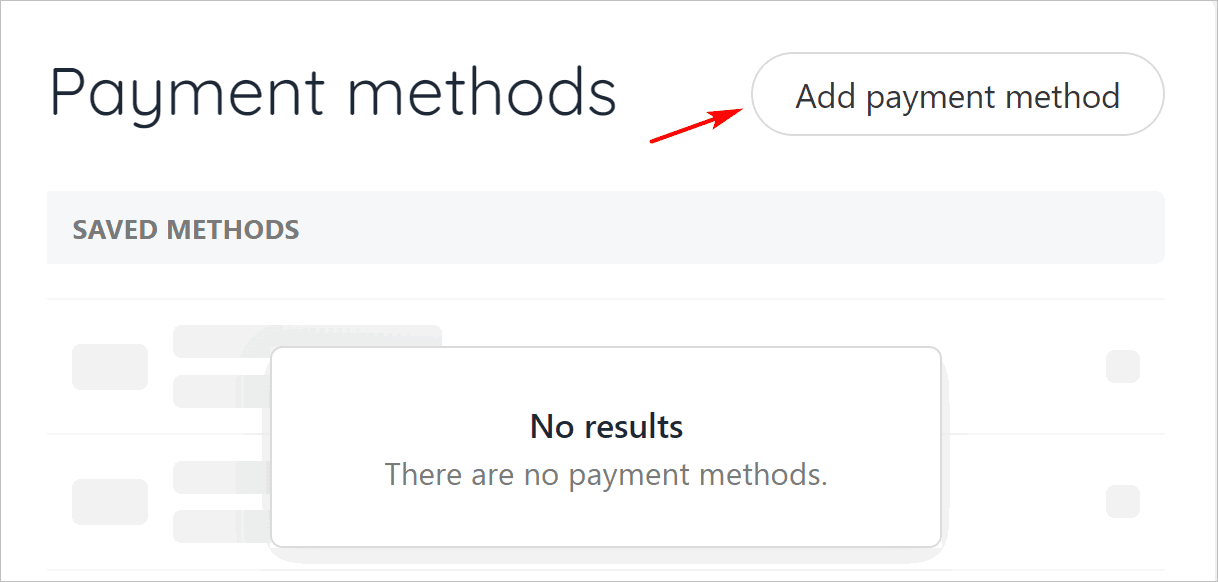
Click the Add payment method button.
Fill the fields and then click Save.
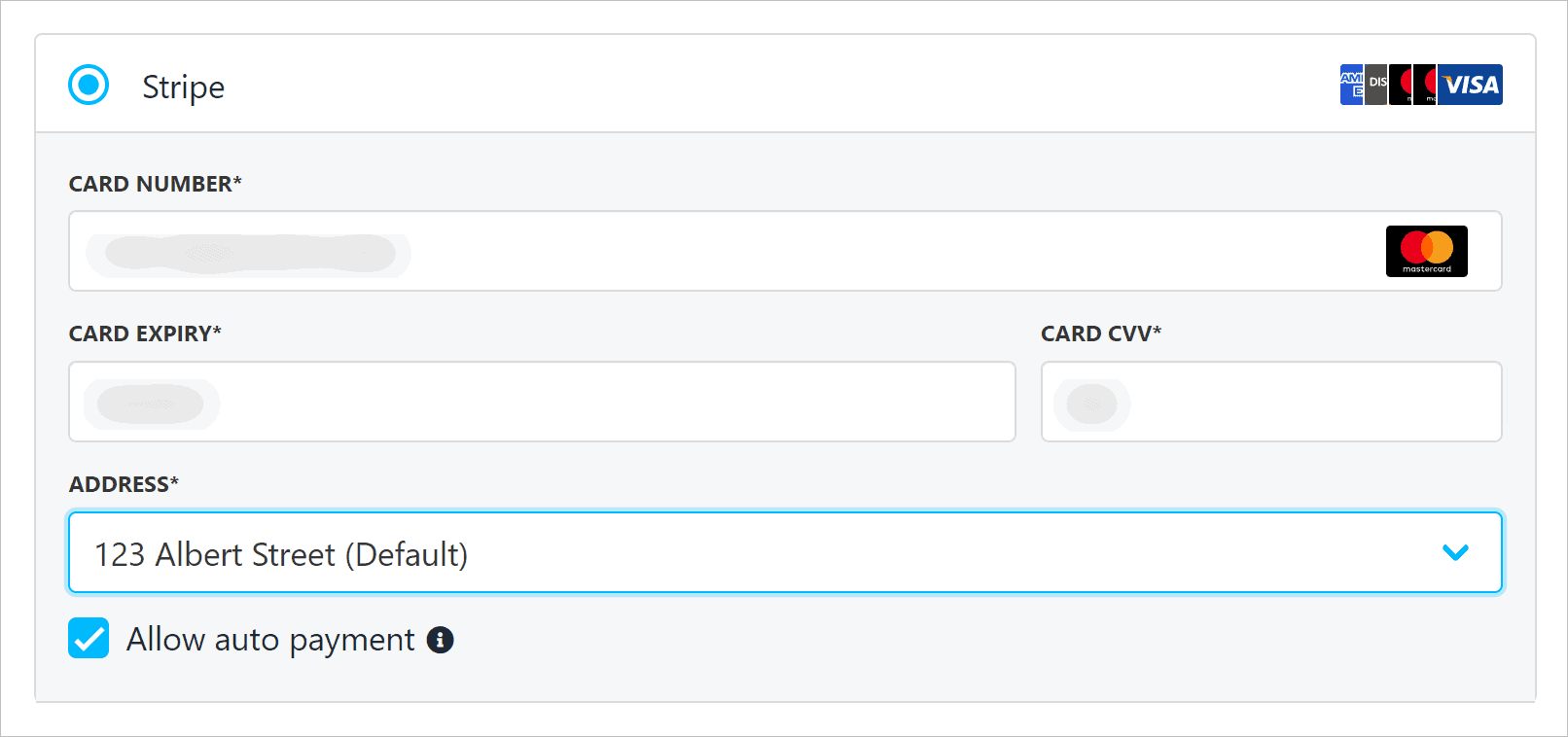
Allowing recurring payments
You can control how this payment method manages auto-renewals (e.g. recurring subscription payments).
Check the box to automatically allow recurring payments on this payment method.
Uncheck the box to prevent auto-renewals on this payment method.
Checkout Method
You can add a new payment method at the checkout.
Fill in the fields.
Click the Place order & pay button.
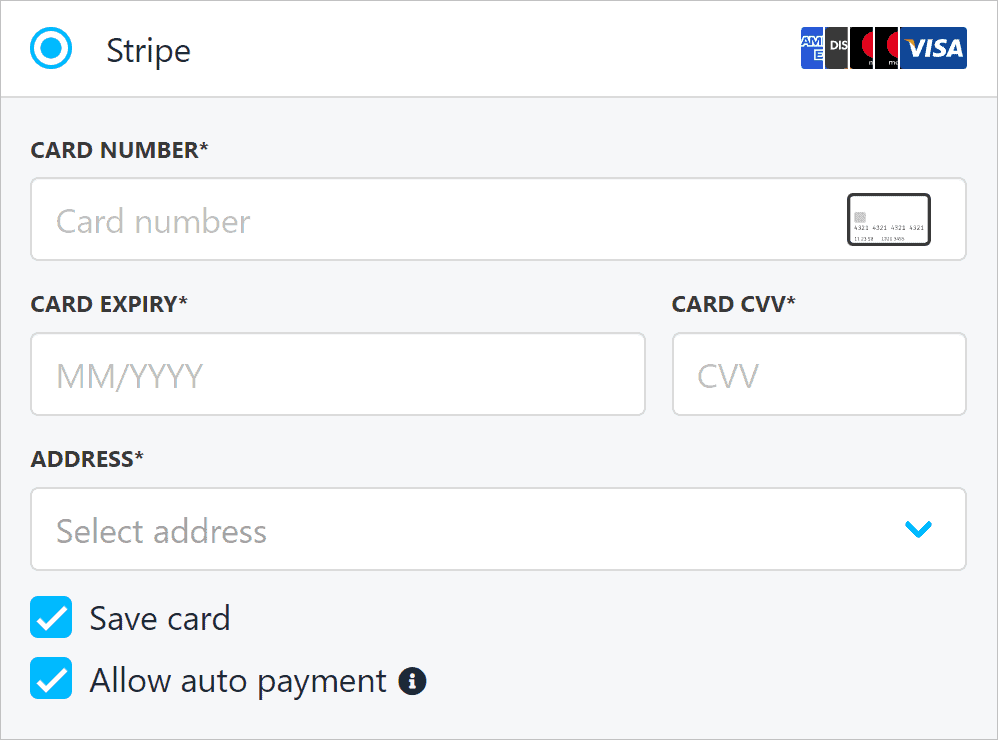
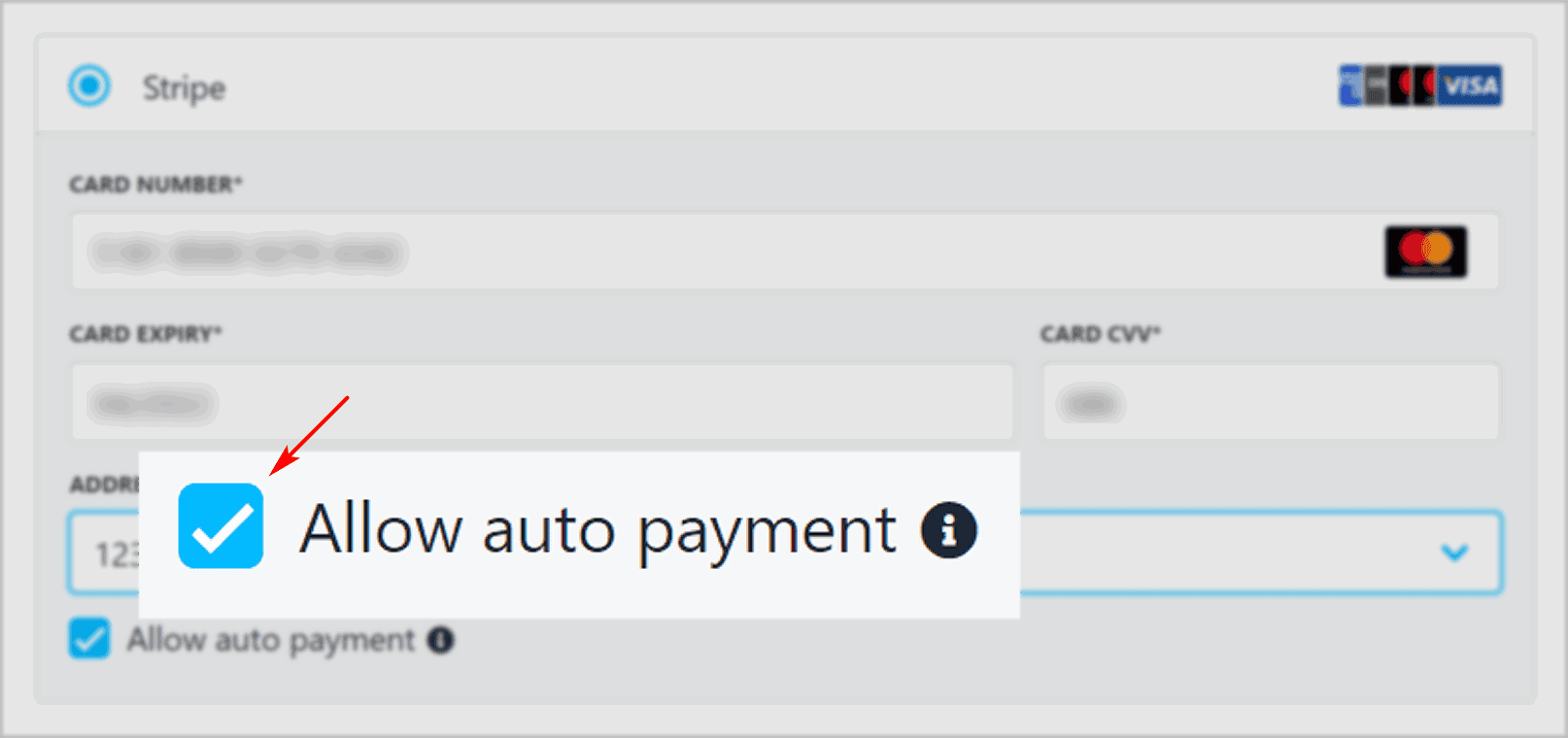
Two boxes are checked by default. You can uncheck the boxes to change the settings.
Save card (save payment method details in your account).
Allow auto payment (e.g. recurring payments).